The Phishing Bridge Lab: Run a Campaign, Then Detect It
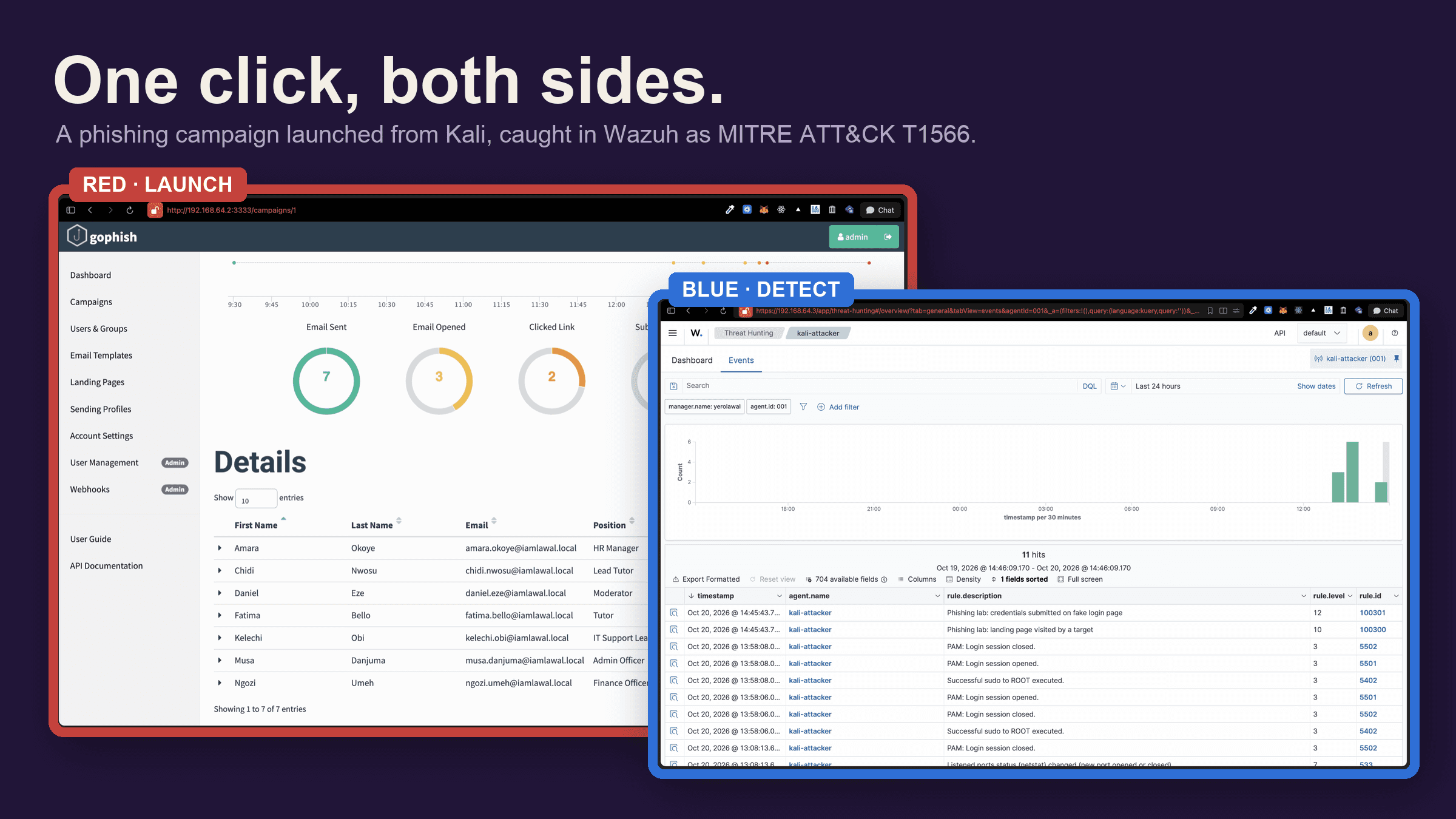
A purple-team bridge: build and launch a full phishing campaign on Apple Silicon with GoPhish and Mailpit, click it from a second VM so it crosses the network, then detect the same click with a custom Wazuh decoder and rules mapped to MITRE ATT&CK T1566. No real mail is sent and no real credentials are captured.
- Platform
- Self-hosted
- Target
- GoPhish + Wazuh
- Difficulty
- Medium
- OS
- Linux
- GoPhish
- Mailpit
- Docker
- Wazuh
- Suricata
- Go
- social-engineering
- phishing-simulation
- detection-engineering
- siem
- mitre-attack
⚠️ For authorised, educational use only. This lab runs entirely against invented targets on an isolated network you own. No email ever leaves your machine, and you never capture a real password. Phishing a real person or organisation without written permission and an agreed scope can break criminal or civil law depending on where you are, regardless of how harmless the pretext looks. The skill you are practising here is seeing the click; use it only where you have permission in writing.
The pentest lab showed the attack. The detection lab built the half that catches it. This one does both in a single exercise: you stand up a phishing campaign, launch it, click it from a second machine so the traffic crosses the network, and then watch the same click fire an alert in the SIEM you already built. That red-and-blue span in one sitting is what people mean by purple team.
It is a bridge module. It does not sit inside the pentest track or the detection track, because it borrows from both: GoPhish and a convincing login page from the offensive side, a custom Wazuh decoder, rules, and MITRE mapping from the defensive side.
Module 0: Foundation setup (expand if this is your first lab)
This lab runs on the shared environment from the Foundation lab and reuses the SIEM from the Detection lab. You need three VMs on the Shared Network:
- Kali (ARM64, Virtualize,
192.168.64.2): runs GoPhish and Mailpit, and already carries a Wazuh agent from the Detection lab. - One target VM (Emulate,
192.168.64.4): acts as the victim who opens the phish, exactly the box you attacked in the pentest lab. - Ubuntu Server (ARM64,
192.168.64.3): the Wazuh manager, indexer, and dashboard.
If you have not built those yet, start with the Foundation lab, then the Detection lab so the Wazuh agent on Kali is already reporting. Everything here assumes that agent exists.
The rules#
These are not optional, and they are the point of the exercise as much as the tooling is.
- Stay on the isolated Shared Network. Mail is caught locally by Mailpit and never delivered.
- Use invented targets only. Every address ends in a
.localdomain that exists only inside your lab. Never enter a real person or a real company. - Keep password capture switched off. You are learning to record that a form was submitted, not to steal secrets.
- Never type real credentials into a page you reached from a link, here or anywhere else. Building that reflex is the whole lesson.
What you are building#
Four pieces work together. GoPhish is the phishing framework: it sends the mail, hosts the fake login page, and records who opened, clicked, and submitted. Mailpit is a fake mail server that catches every message so nothing leaves the machine. On the defensive side, a custom Wazuh decoder parses GoPhish's log and rules fire when someone hits the fake page, while Suricata sees the same click cross the network when you open the phish from a separate VM.
The topology is the familiar three machines, each playing a new part:
| Machine | Address | Role here |
|---|---|---|
| Kali (ARM64) | 192.168.64.2 | Runs GoPhish and Mailpit; Wazuh agent ships the GoPhish log |
| Target VM | 192.168.64.4 | The victim: opens the inbox and clicks the link |
| Ubuntu Server | 192.168.64.3 | Wazuh manager, indexer, dashboard |
A note on addressing. This series puts Kali at
192.168.64.2. The steps below call itYOUR-KALI-IPso you can paste your own address; confirm it withhostname -Ion the Kali box. Always reach the services from your Mac browser using that IP, neverlocalhost, because on your Maclocalhostis the Mac, not the VM.
Part 1: red team, build and launch#
1. Install the build tools#
GoPhish ships only x86_64 release binaries, so you build it from source on ARM64 Kali. Mailpit, unlike the older and now-unmaintained MailHog (which is amd64-only), publishes a native arm64 container image, so it runs straight from Docker. Install what both need:
sudo apt update && sudo apt -y upgrade
sudo apt -y install unzip wget sqlite3 golang-go git docker.io
2. Mailpit, the fake mail server#
Mailpit is the maintained successor to MailHog. Its official image is multi-arch, so it runs natively on arm64 and handles restart and port mapping in one line:
sudo systemctl enable --now docker
sudo docker run -d \
  --name mailpit \
  --restart always \
  -p 1025:1025 \
  -p 8025:8025 \
  axllent/mailpit
Mailpit now catches mail on port 1025 (SMTP) and serves a web inbox on 8025, with a REST API under /api/v1/ that you can read with curl if you ever need to.
Checkpoint: browse to http://YOUR-KALI-IP:8025 from your Mac and the Mailpit inbox loads.
If the inbox is blank in an older browser, Mailpit's web UI uses modern JavaScript (ES2022 private class fields) that a dated Firefox, such as the one on an emulated target VM, cannot parse; the console shows
SyntaxError: private fields are not currently supported. Use a current browser on your Mac, or skip the UI entirely and read messages over the API:curl -s http://YOUR-KALI-IP:8025/api/v1/messages. The fake login page itself has no JavaScript and renders fine anywhere.
3. GoPhish, built from source#
The release zip is x86_64, so build the native arm64 binary:
cd ~
git clone https://github.com/gophish/gophish.git
cd gophish
go build
Everything GoPhish needs lives inside ~/gophish/.
4. Configure GoPhish#
Replace the default config.json before the first run. The admin dashboard listens on 3333, the phishing site on 8080:
cat > ~/gophish/config.json <<'EOF'
{
  "admin_server": {
    "listen_url": "0.0.0.0:3333",
    "use_tls": false,
    "cert_path": "",
    "key_path": "",
    "trusted_origins": []
  },
  "phish_server": {
    "listen_url": "0.0.0.0:8080",
    "use_tls": false,
    "cert_path": "",
    "key_path": ""
  },
  "db_name": "sqlite3",
  "db_path": "gophish.db",
  "migrations_prefix": "db/db_",
  "contact_address": "lab@yourdomain.local",
  "logging": { "filename": "gophish.log", "level": "info" }
}
Two choices in there matter. Port 8080, not 80, because binding port 80 needs root, and running GoPhish as root creates the database with the wrong owner and you get "attempt to write a readonly database" later. Logging to a file, because in Part 2 you point Wazuh at gophish.log; the stock config leaves logging blank, and that one line is what makes the blue-team half possible. Write this config before the first run, or GoPhish starts on its defaults and you have to stop it and begin again.
5. First run, then make it a service#
Run it once by hand to build the database and print the one-time admin password:
cd ~/gophish
./gophish
Copy the password from the "Please login with the username admin and the password..." line; it is shown once, only on the first run that initialises the database, and never again (restarting the service does not reprint it). If you lose it, you can still read it from the log: grep -i password ~/gophish/gophish.log. Press Ctrl+C to stop. Never run GoPhish with sudo.
Then install it as a service so it comes back on its own. This heredoc is deliberately unquoted so $USER and $HOME expand to your login and home directory as the file is written, no hardcoded username:
sudo tee /etc/systemd/system/gophish.service >/dev/null <<EOF
[Unit]
Description=GoPhish Phishing Framework (lab only)
After=network.target docker.service

[Service]
Type=simple
User=$USER
WorkingDirectory=$HOME/gophish
ExecStart=$HOME/gophish/gophish
Restart=always
RestartSec=5

[Install]
WantedBy=multi-user.target
EOF

sudo chown -R "$USER":"$USER" "$HOME/gophish"
sudo systemctl daemon-reload
sudo systemctl enable --now gophish
sudo systemctl status gophish --no-pager
Checkpoint: the service reads active (running). If it shows auto-restart, read sudo journalctl -u gophish --no-pager -n 40 for the reason, usually ownership or a stray config.json typo.
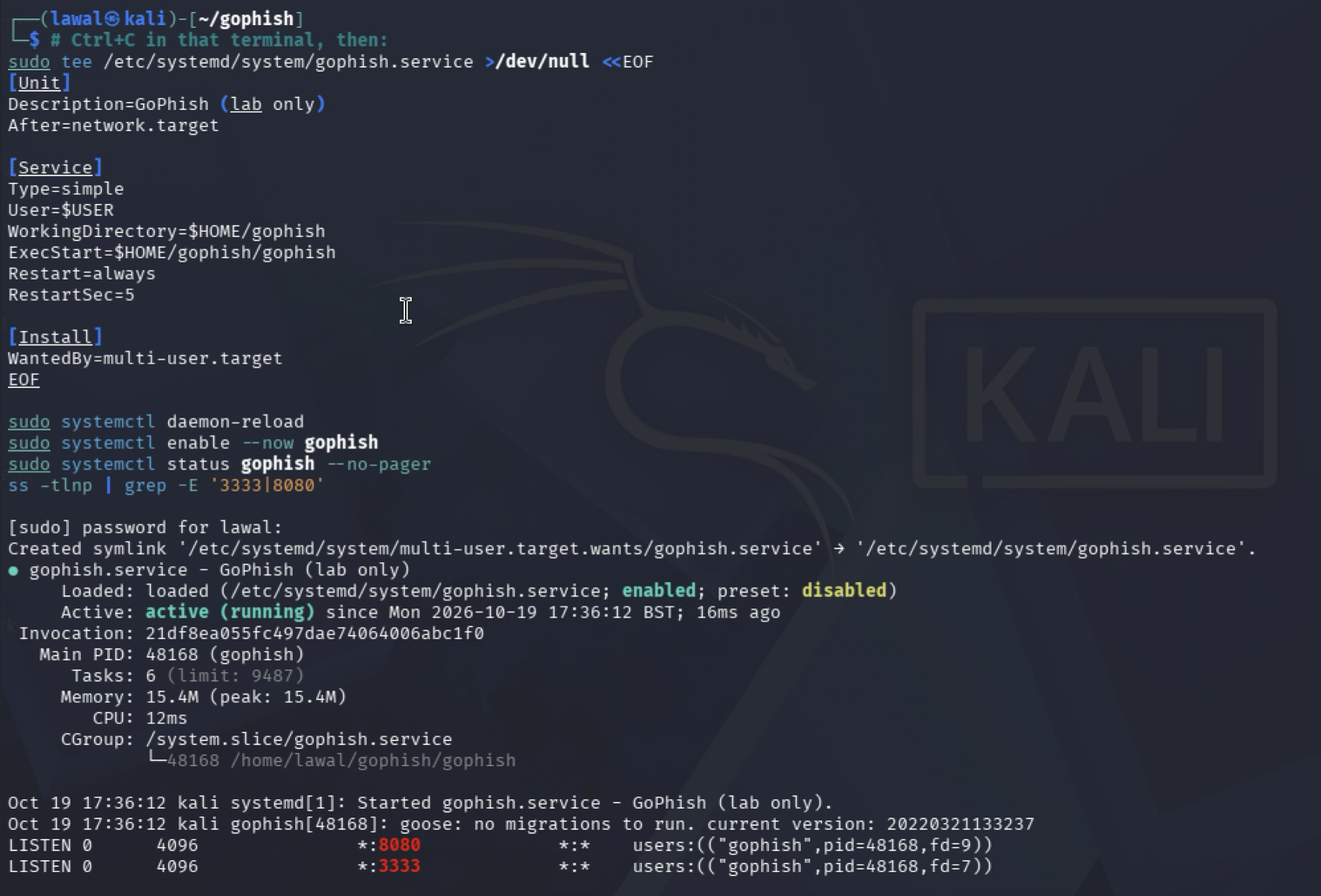
Tick each box once you have captured that shot; it syncs with the screenshot checklist automatically.
Log in from your Mac at http://YOUR-KALI-IP:3333 as admin with the one-time password, and set a new one. If you hit "Forbidden, CSRF token invalid," open a private window and retry.
6. Build the campaign#
A GoPhish campaign ties together five parts. Build them in order.
A. Sending profile. Under Sending Profiles, New Profile. Name it IT Helpdesk, set SMTP From to no-reply@yourdomain.local, Host to YOUR-KALI-IP:1025 (Mailpit's intake), and leave username and password blank. Send a test email, then confirm it landed in the Mailpit inbox at http://YOUR-KALI-IP:8025. Save.
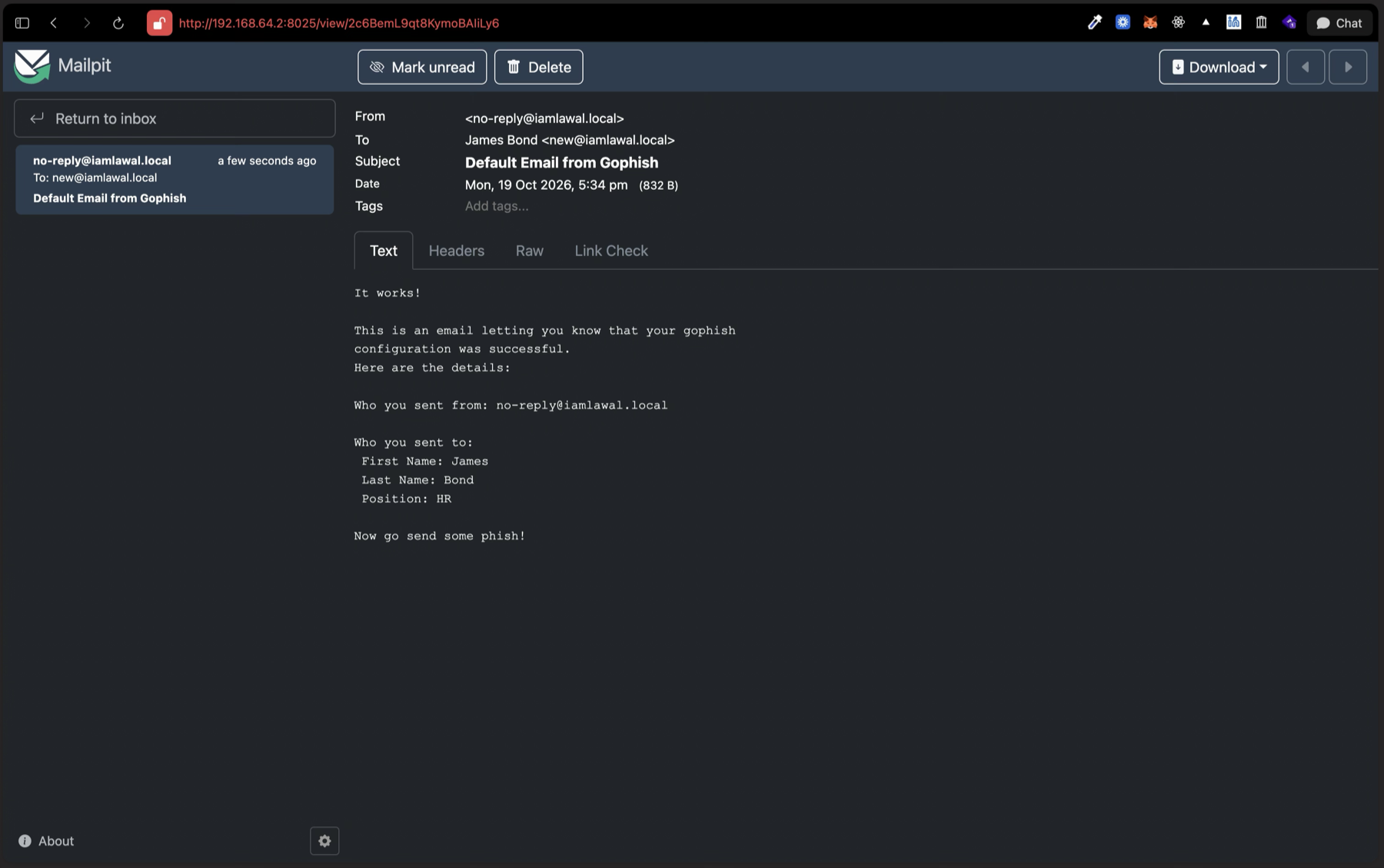
Tick each box once you have captured that shot; it syncs with the screenshot checklist automatically.
B. Landing page. Under Landing Pages, New Page, name it Portal Login (Lab). Click the source button (< >), clear the box, and paste a generic staff portal:
<!doctype html>
<html lang="en">
<head>
<meta charset="utf-8">
<meta name="viewport" content="width=device-width, initial-scale=1">
<title>Staff Portal</title>
<style>
*{box-sizing:border-box;margin:0;padding:0}
body{font-family:Arial,Helvetica,sans-serif;min-height:100vh;background:#1D5DBF;
  display:flex;align-items:center;justify-content:center;color:#10285A}
.card{background:#fff;width:430px;max-width:92vw;border-radius:14px;
  padding:46px 44px 32px;box-shadow:0 22px 60px rgba(0,0,0,.30)}
.brand h1{color:#1D5DBF;font-size:28px;font-weight:800;letter-spacing:1px;text-align:center}
.brand .bar{width:66px;height:5px;background:#FFD936;border-radius:3px;margin:12px auto 8px}
.brand p{color:#6b7280;font-size:14px;margin-bottom:28px;text-align:center}
label{display:block;font-size:13px;font-weight:700;color:#10285A;margin:0 0 6px 2px}
.field{margin-bottom:18px}
input{width:100%;padding:14px;font-size:15px;border:1px solid #d1d9e6;
  border-radius:8px;background:#f7f9fc;color:#10285A}
button{width:100%;padding:15px;font-size:16px;font-weight:700;color:#fff;
  background:#1D5DBF;border:none;border-radius:8px;cursor:pointer}
.foot{text-align:center;font-size:12px;color:#9aa4b2;margin-top:24px}
</style>
</head>
<body>
<div class="card">
  <div class="brand"><h1>STAFF PORTAL</h1><div class="bar"></div><p>Sign in to continue</p></div>
  <form method="post">
    <div class="field"><label>Username or Email</label>
      <input type="text" name="username" placeholder="you@yourdomain.local" autocomplete="off"></div>
    <div class="field"><label>Password</label>
      <input type="password" name="password" placeholder="Enter your password" autocomplete="off"></div>
    <button type="submit">Sign in</button>
  </form>
  <div class="foot">Authorized users only.</div>
</div>
</body>
</html>
The page is deliberately generic: a plain "Staff Portal," no real logo, brand name, or company it is pretending to be. That is a house rule, not a stylistic one. This screen gets published in the write-up, and a lab must never dress up as a real organisation it does not name.
Below the editor, tick Capture Submitted Data, leave Capture Passwords unchecked, and set Redirect to a harmless page, the Mailpit inbox http://YOUR-KALI-IP:8025 works, so the victim lands somewhere benign after submitting. Click Save Page while still in the source view; switching back to the visual editor first can rewrite the markup.
C. Email template. Under Email Templates, New Template, name it Password Expiry Notice (Lab), subject Action required: your password expires today. In source view, paste:
<html>
<body style="font-family:Arial,sans-serif;color:#222;line-height:1.6">
<p>Hi {{.FirstName}},</p>
<p>Our records show your account password expires <b>today</b>. To keep your
  access active, please verify your account using the link below.</p>
<p><a href="{{.URL}}" style="background:#1D5DBF;color:#ffffff;padding:10px 18px;
  text-decoration:none;border-radius:4px;display:inline-block">Verify your account</a></p>
<p>If you do not act today, your access may be suspended.</p>
<p>Regards,<br>IT Helpdesk</p>
{{.Tracker}}
</body>
</html>
The three variables do the work: {{.FirstName}} greets each target, {{.URL}} becomes a unique tracking link so GoPhish knows exactly who clicked (you never type your IP here), and {{.Tracker}} is the invisible open-tracking pixel. Because the tracker is already in the HTML, leave the Add Tracking Image box unticked. Save.
D. Users and groups. Under Users and Groups, New Group, name it Lab Staff, and bulk-import invented people. Every address ends in yourdomain.local:
First Name,Last Name,Email,Position
Amara,Okoye,amara.okoye@yourdomain.local,HR Manager
Chidi,Nwosu,chidi.nwosu@yourdomain.local,Lead Tutor
Fatima,Bello,fatima.bello@yourdomain.local,Tutor
Daniel,Eze,daniel.eze@yourdomain.local,Moderator
Kelechi,Obi,kelechi.obi@yourdomain.local,IT Support Lead
Musa,Danjuma,musa.danjuma@yourdomain.local,Admin Officer
Ngozi,Umeh,ngozi.umeh@yourdomain.local,Finance Officer
E. Launch. Under Campaigns, New Campaign, name it Demo Phishing, and select the template, landing page, sending profile, and group you just built. For URL, type http://YOUR-KALI-IP:8080. Use http, not https: the lab server speaks plain http, and a running campaign's URL cannot be edited, so a mistyped https means completing it and starting over. Click Launch Campaign.
7. Walk the kill chain from the victim VM#
This is the step that makes the blue team possible. Instead of clicking your own link on Kali, drive the request from the target VM so it crosses the network and Suricata can see it come from the victim's real IP.
The link GoPhish actually generates. Each target's {{.URL}} resolves to the phishing server with that target's record ID as a query string, not a path segment:
http://YOUR-KALI-IP:8080/?rid=<RID>     ← the landing page (a click)
http://YOUR-KALI-IP:8080/track?rid=<RID> ← the invisible open-tracking pixel
That distinction matters and is easy to get wrong. The clickable link is the root path with rid as a query parameter; /track?rid= is a separate 1×1 image that only records an email open, and a bare /<RID> path is not a route at all (it 404s). You will match on exactly this shape in Part 2.
The direct way, a browser. On the target VM (not Kali), open http://YOUR-KALI-IP:8025 to reach Mailpit, open a phishing email, and click the link. The fake login page loads from Kali on port 8080. Enter a fake username and a fake password, and submit.
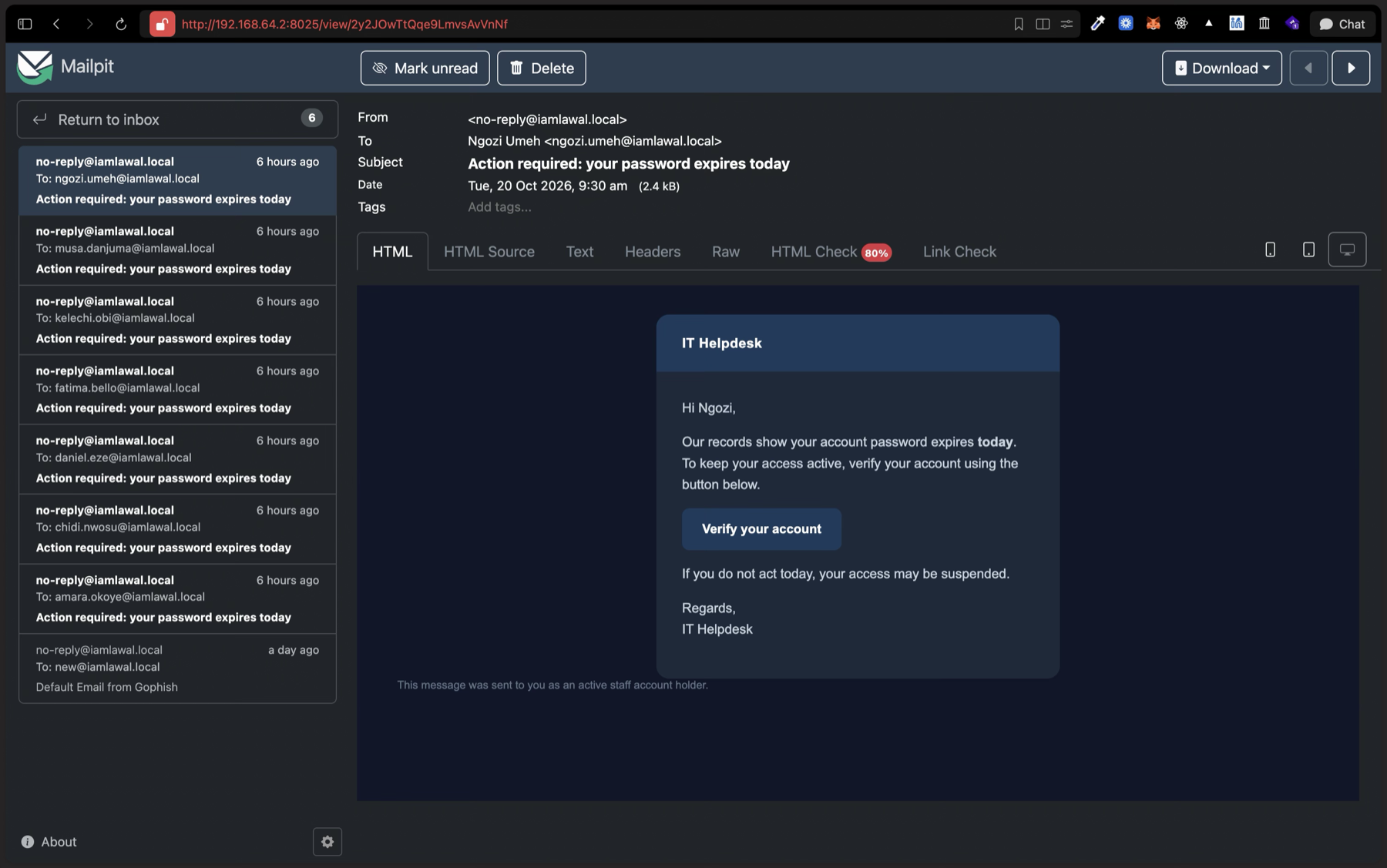
Tick each box once you have captured that shot; it syncs with the screenshot checklist automatically.
The reliable way, curl from the victim. An emulated VM's browser may be too old for Mailpit's UI, and clipboard paste into a VM console is unreliable. SSH into the target from your Mac (ssh youruser@192.168.64.4) and drive the two requests directly, so they still originate from the victim's IP:
# A click (GET the landing page)
curl -s "http://YOUR-KALI-IP:8080/?rid=<RID>" -o /dev/null -w "click: %{http_code}\n"
# A submission (POST the fake form)
curl -s -X POST "http://YOUR-KALI-IP:8080/?rid=<RID>" \
  -d "username=testuser&password=testpass" -o /dev/null -w "submit: %{http_code}\n"
The click returns 200 (the page is served) and the submit returns 302 (GoPhish records the data, then redirects to the page you set). To get each target's real <RID> without guessing, read GoPhish's own API with the key from Account Settings. Resolve the campaign by name first, since its numeric id is not always 1 after you delete and recreate campaigns across lab runs:
API="http://YOUR-KALI-IP:3333/api"; KEY="<YOUR_API_KEY>"
# find the "Demo Phishing" campaign's id, then list each target's rid and status
CID=$(curl -s "$API/campaigns/?api_key=$KEY" | \
  python3 -c 'import json,sys; print(next(c["id"] for c in json.load(sys.stdin) if c["name"]=="Demo Phishing"))')
curl -s "$API/campaigns/$CID?api_key=$KEY" | \
  python3 -c 'import json,sys; [print(r["email"], r["id"], r["status"]) for r in json.load(sys.stdin)["results"]]'
Tick each box once you have captured that shot; it syncs with the screenshot checklist automatically.
Either way, watch the funnel. On the GoPhish dashboard (http://YOUR-KALI-IP:3333), the rings fill: Email Sent, Email Opened, Clicked Link, Submitted Data. Expand a name to see its timeline, and open Submitted Data to see the captured username. The password field is blank because you kept capture off.
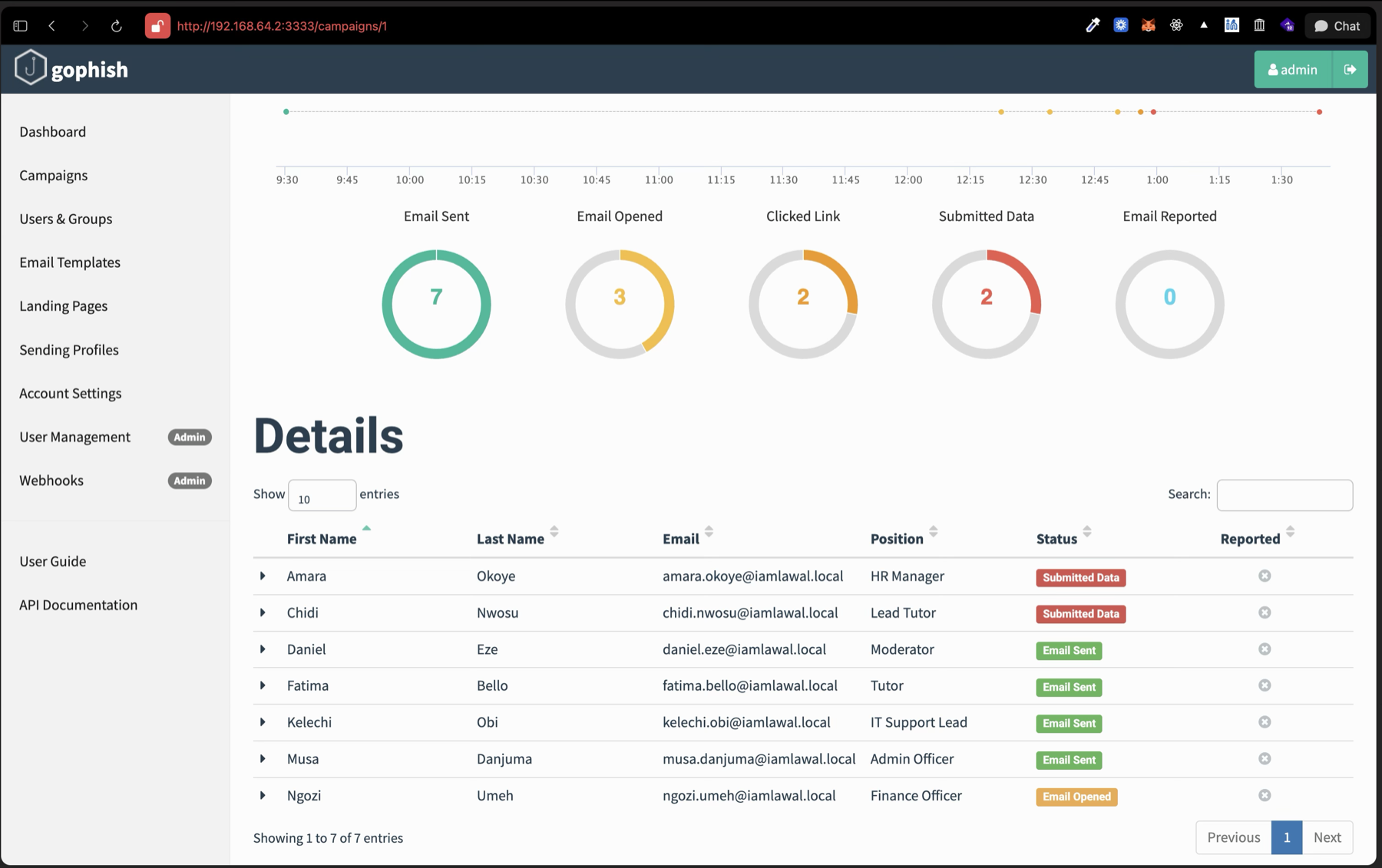
Tick each box once you have captured that shot; it syncs with the screenshot checklist automatically.
The lesson in one sentence: the fake site already has the username, and with password capture on it would have the password too. That is why you never enter real credentials on a page you reached from a link.
Part 2: blue team, detect the phish#
You now have a working campaign. This half wires it into the Wazuh SIEM from the Detection lab, so the same click that fills GoPhish's rings also raises an alert.
1. Confirm the Wazuh agent on Kali#
The Detection lab already put an agent on Kali. Confirm it is running:
sudo systemctl status wazuh-agent --no-pagerIf there is no agent yet, install one following the Detection lab's agent step, pointing it at 192.168.64.3.
2. Ship the GoPhish log (on Kali)#
GoPhish writes gophish.log as plain, logrus-style access-log lines, each HTTP request wrapped in a msg="..." field. It is not JSON, so you collect it as syslog (plain text). Add a localfile block to the agent's config, make the file readable, and restart. The unquoted heredoc expands $HOME to your home directory as the file is written:
sudo tee -a /var/ossec/etc/ossec.conf >/dev/null <<EOF

<!-- GoPhish campaign log -->
<ossec_config>
  <localfile>
    <log_format>syslog</log_format>
    <location>$HOME/gophish/gophish.log</location>
  </localfile>
</ossec_config>
EOF

sudo chmod 644 "$HOME/gophish/gophish.log"
sudo systemctl restart wazuh-agent
Confirm the agent actually opened the file:
sudo grep -i gophish /var/ossec/logs/ossec.log
# ...wazuh-logcollector: INFO: (1950): Analyzing file: '/home/<you>/gophish/gophish.log'.
The log collector only reads lines appended after it starts watching. Anything already in
gophish.logbefore this restart is never shipped. So generate your test click after this step, not before.
3. Add a custom decoder (on the Wazuh manager)#
Here is the part the original plan for this lab got wrong, and it is worth understanding rather than copying. A GoPhish line looks like this (note the inner quotes are escaped as \", because the whole access log sits inside a logrus msg="..." field):
time="2026-10-20T13:59:09+0100" level=info msg="192.168.64.4 - - [20/Oct/2026:13:59:09 +0100] \"GET /?rid=abnvDC3 HTTP/1.1\" 200 2352 \"-\" \"curl/7.47.0\""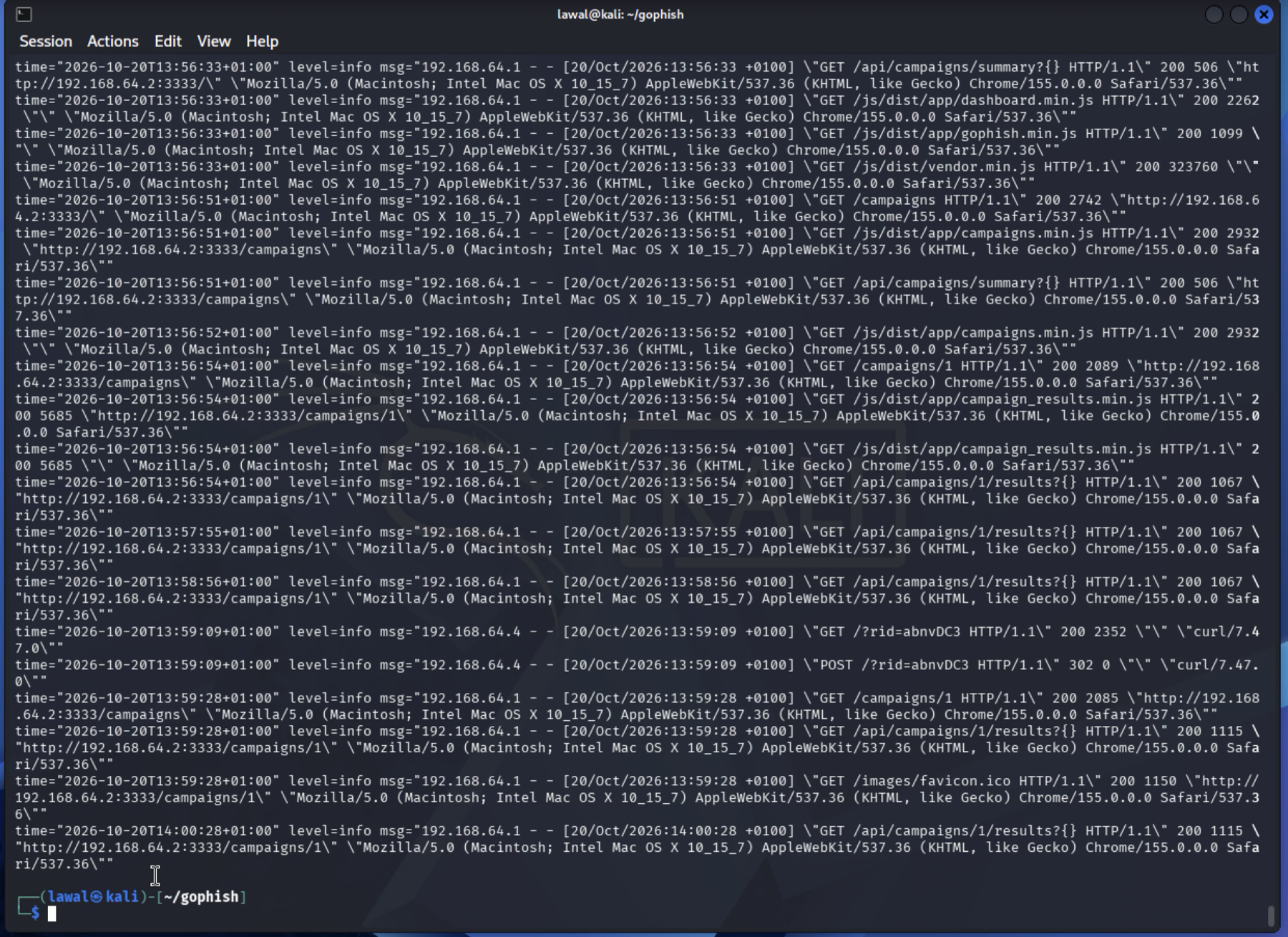
Tick each box once you have captured that shot; it syncs with the screenshot checklist automatically.
No built-in Wazuh decoder recognises that shape. If you try to match it with a bare <match> or <regex> rule and nothing has decoded the line, the rule never fires, wazuh-logtest shows "No decoder matched" and no Phase 3 at all. The fix is to give these lines a decoder of your own, which also lets you pull out useful fields. SSH into the manager (192.168.64.3) and append it. The heredoc is quoted ('EOF') so the backslashes survive verbatim:
sudo tee -a /var/ossec/etc/decoders/local_decoder.xml >/dev/null <<'EOF'

<decoder name="gophish-access">
  <prematch type="pcre2"> - - \[</prematch>
  <regex type="pcre2">(\d+\.\d+\.\d+\.\d+) - - \[[^\]]+\] \\?"(\w+) (/\S*?)\?rid=(\w+)</regex>
  <order>srcip, http_method, url_path, rid</order>
</decoder>
EOF
Two details carry the whole thing. It uses type="pcre2" because Wazuh's default regex engine (OS_Regex) cannot escape a literal ? and errors on \?; PCRE2 can. And the quote before the method is written \\?", an optional backslash then a quote, so it matches the escaped \" that GoPhish actually emits. The decoder extracts four fields: srcip (the victim), http_method (GET or POST), url_path (/ for a real click, /track for the open pixel), and rid.
4. Write the detection rules (on the manager)#
Open the local rules file:
sudo nano /var/ossec/etc/rules/local_rules.xmlAdd a group of three rules that key off the fields the decoder just produced. A landing-page visit is a GET to /, a submission is a POST, and the open pixel is a GET to /track. All map to MITRE ATT&CK T1566, so they land in the matrix view you know from the Suricata work:
<group name="gophish,phishing_lab,">

  <!-- A target visited the landing page -->
  <rule id="100300" level="10">
    <decoded_as>gophish-access</decoded_as>
    <field name="http_method">GET</field>
    <field name="url_path">^/$</field>
    <description>Phishing lab: landing page visited by a target</description>
    <mitre>
      <id>T1566</id>
    </mitre>
  </rule>

  <!-- A target submitted the fake login form -->
  <rule id="100301" level="12">
    <decoded_as>gophish-access</decoded_as>
    <field name="http_method">POST</field>
    <description>Phishing lab: credentials submitted on fake login page</description>
    <mitre>
      <id>T1566</id>
    </mitre>
  </rule>

  <!-- A target opened the email (tracking pixel) -->
  <rule id="100302" level="5">
    <decoded_as>gophish-access</decoded_as>
    <field name="http_method">GET</field>
    <field name="url_path">^/track$</field>
    <description>Phishing lab: tracking pixel opened (email viewed)</description>
    <mitre>
      <id>T1566</id>
    </mitre>
  </rule>

</group>
Restart the manager so it loads the decoder and rules:
sudo systemctl restart wazuh-manager
sudo systemctl status wazuh-manager --no-pager
Rule IDs must be unique across the server. If another lab already uses the 100300 block, shift all three (
100300,100301,100302) to the next free run such as100310+, and update every reference that follows to match: therule.idfilter in step 6, theid: '100300'line in the logtest output, and the rule-ID mentions in the screenshots and the appendix checklist. A duplicate ID, or any XML error in the decoder or rules, stops the manager from starting;sudo tail -40 /var/ossec/logs/ossec.lognames the file and line.
5. Prove the rule before trusting the dashboard#
Feed one real log line straight into the analyser on the manager. This removes every dashboard variable (indexing lag, time range, filters) and tells you definitively whether the rule fires:
echo 'time="2026-10-20T13:59:09+0100" level=info msg="192.168.64.4 - - [20/Oct/2026:13:59:09 +0100] \"GET /?rid=abnvDC3 HTTP/1.1\" 200 2352 \"-\" \"curl/7.47.0\""' | sudo /var/ossec/bin/wazuh-logtestCheckpoint: Phase 2 names the decoder and lists the extracted fields, and Phase 3 fires the rule:
**Phase 2: Completed decoding.
        name: 'gophish-access'
        http_method: 'GET'
        rid: 'abnvDC3'
        srcip: '192.168.64.4'
        url_path: '/'

**Phase 3: Completed filtering (rules).
        id: '100300'
        level: '10'
        mitre.id: '['T1566']'
        mitre.tactic: '['Initial Access']'
        mitre.technique: '['Phishing']'
**Alert to be generated.
If Phase 2 shows the decoder name but no fields, the extraction regex missed, most often the escaped-quote detail above. If there is no Phase 3, the rule did not match the decoded fields.
6. Test it end to end#
With the rule proven, generate a real event so it flows the whole path, agent → manager → dashboard:
- From the target VM, run the
curlclick and submit from Part 1 step 7 against a target'srid(or click a fresh link in a browser). - On the Wazuh dashboard, open Threat Hunting, select the Kali agent, and search
rule.id: (100300 OR 100301)over the last 15 minutes.
Checkpoint: two alerts appear, rule 100300 (level 10, visit) and rule 100301 (level 12, submission), both tagged T1566, both carrying srcip = the victim VM's address. If Suricata is running on the target from the Detection lab, the same HTTP request to Kali's port 8080 also shows as a network event, giving you the host view (the GoPhish log) and the network view (Suricata) of one click.
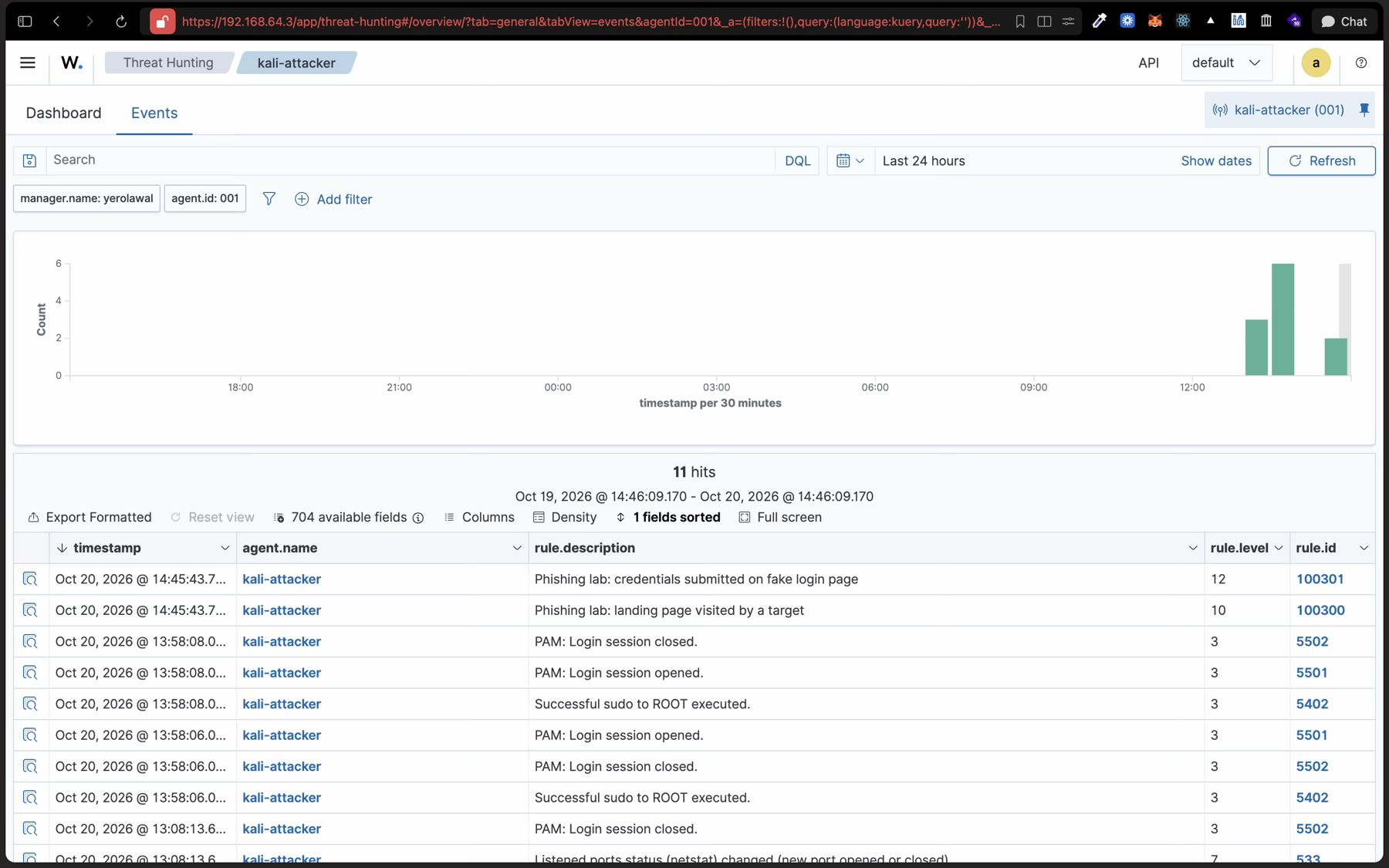
Tick each box once you have captured that shot; it syncs with the screenshot checklist automatically.
7. What to look for#
Three views tell the whole story, and the pair of them side by side is the artifact worth keeping:
- Threat Hunting: your 100300 and 100301 alerts with the victim's source IP and the decoded
http_method,rid, andurl_pathfields. - MITRE ATT&CK: T1566 (Initial Access · Phishing) now lights up in the matrix, next to the techniques you triggered from the other labs.
- GoPhish dashboard: the same timeline from the attacker's side, rings filling as the victim moves through the funnel.
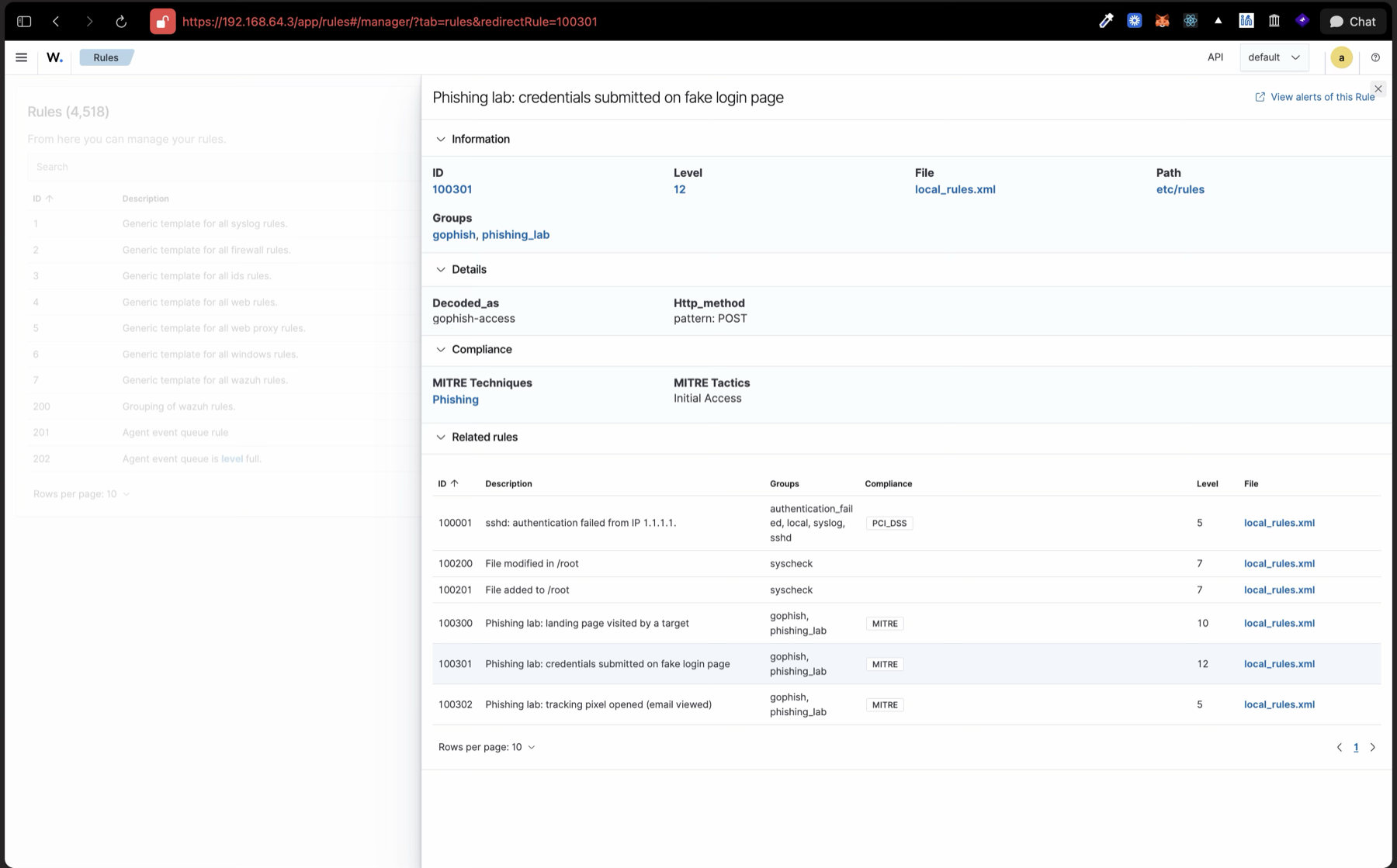
Tick each box once you have captured that shot; it syncs with the screenshot checklist automatically.
Cleanup#
When you are done, complete or delete the campaign so the dashboard is clean, and optionally stop the services between sessions:
sudo systemctl stop gophish
sudo docker stop mailpit
Leave the Wazuh decoder and rules in place. They stay quiet unless GoPhish is running and writing log lines, so they add no noise.
Appendix: troubleshooting#
| Symptom | Cause | Fix |
|---|---|---|
bind: permission denied on port 80 | Config still on port 80 | Rewrite config.json for port 8080 (step 4) |
attempt to write a readonly database | GoPhish was run with sudo, or ownership is wrong | sudo chown -R "$USER":"$USER" ~/gophish; never use sudo |
| GoPhish binary will not execute | Downloaded the x86_64 release | Delete it and go build from source (step 3) |
| Mailpit container will not start | Docker not running | sudo systemctl start docker, then sudo docker start mailpit |
| Mailpit inbox is blank | Browser too old for its JS UI | Use a current browser, or read the API: curl -s http://YOUR-KALI-IP:8025/api/v1/messages |
| "CSRF token invalid" on login | Stale browser cookie | Open a private window |
| Phish link 404s or hits the pixel | Used /<RID> or /track?rid= | The real click URL is root + query: http://YOUR-KALI-IP:8080/?rid=<RID> |
wazuh-logtest: "No decoder matched", no Phase 3 | No decoder claims the logrus line | Add the gophish-access decoder (Part 2 step 3) |
| Manager won't start: "Invalid decoder name" | A rule references a decoder that does not exist | Match <decoded_as> to a real decoder name (gophish-access) |
| Manager won't start: "Syntax error on tag 'regex'" | OS_Regex cannot escape ? | Use type="pcre2" on the decoder regex, or <match> in a rule |
| Decoder matches but extracts no fields | Regex expects a plain ", log has \" | Write the quote as \\?" (step 3) |
| No Wazuh alerts, rule proven in logtest | Log collector started after the event | Regenerate the click; it only tails new lines |
| Rule IDs conflict | Another lab already uses 100300-100302 | Shift to the next free block (100310+) |
Appendix: Screenshot checklist#
Capture these as you go. The GoPhish rings beside the Wazuh T1566 alerts (ph-5 and ph-7) are the portfolio artifact, one campaign seen from both sides; the rest make the write-up evidence rather than assertion. Filenames follow ph-<n> so a sorted folder reads in lab order.
| Screenshot ID | What it shows | Status |
|---|---|---|
ph-1 | The gophish service active (running), ports 3333 and 8080 listening | |
ph-2 | Mailpit showing the GoPhish test email | |
ph-3 | The rendered lure in the target's Mailpit inbox | |
ph-4 | The victim curl returning click: 200 and submit: 302 | |
ph-5 | The GoPhish rings and the per-target table with Submitted Data | |
ph-6 | gophish.log with the GET /?rid= and POST /?rid= access lines | |
ph-7 | Wazuh Threat Hunting with rules 100300 and 100301 | |
ph-8 | The rule detail: decoded_as gophish-access and MITRE T1566 |
Where this sits#
This is the purple-team hinge of the local series: it reuses the pentest lab's topology for the attack and the Detection lab's SIEM for the catch, and it adds T1566 to your MITRE coverage. What you can show afterwards is the thing a defender and an attacker rarely have from the same person: one campaign, launched and detected, evidenced on both sides.
The track that builds on this next is the AI-augmented SOC (planned): layering Grafana dashboards, network inventory, and AI-assisted triage on top of the growing pile of alerts, so the question shifts from "did we detect it" to "how fast can we read it."
See how the tracks connect on the interactive labs map.